
App guide 2 of 5
Save Downloads Settings: Save Location, Wi-Fi Only and Queue
Change where Save Downloads saves files, how many downloads run at once, and whether to wait for Wi-Fi. A screenshot guide to every download setting.
Quick steps
- Open Settings. Tap the Settings tab at the bottom of the app.
- Open Download settings. Tap Download settings at the top of the General section.
- Choose a save location. Pick One folder (Download/SaveDownloads) or Sorted by type (Movies, Music, Pictures).
- Set the queue and Wi-Fi option. Choose how many downloads run at once, turn Download on Wi-Fi only on or off, then tap Done.
Save Downloads works without changing anything, but three settings are worth knowing: where files are saved, how many download at once, and whether to wait for Wi-Fi. All screenshots are from version 1.0.3.1 on a Redmi 14C.
Open the settings
Tap Settings in the bottom bar. At the top of the General section you’ll see Download settings, with a summary of your current choice underneath, for example Download/SaveDownloads · 5 at a time.
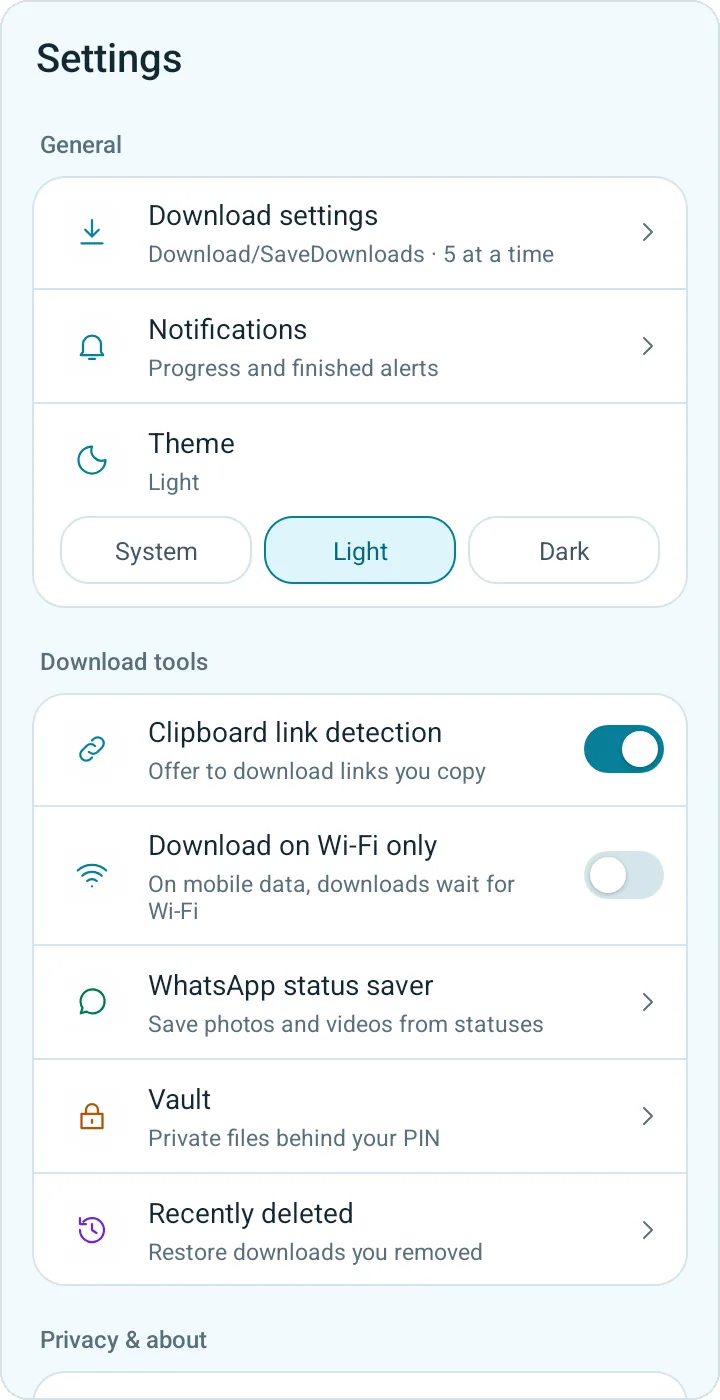
Tap it to open the download settings sheet.
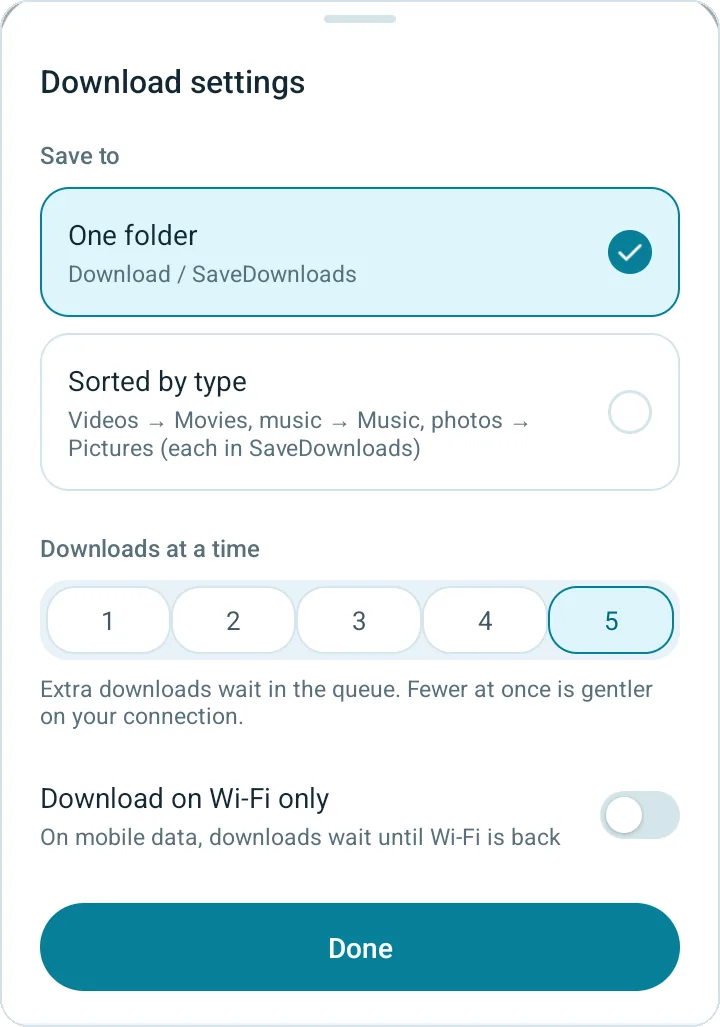
Save to: one folder or sorted by type
- One folder (default): every download goes into Download > SaveDownloads. Easy to find, easy to back up, and easy to clear out.
- Sorted by type: videos go to Movies > SaveDownloads, music to Music > SaveDownloads and photos to Pictures > SaveDownloads. Choose this if you like your music app and gallery to pick files up from their usual folders.
The change applies to new downloads. Files you’ve already saved stay where they are.
Downloads at a time
Choose 1 to 5. Extra downloads wait in a queue and start when one finishes. Five is the default and works well on Wi-Fi. On a slow or shared connection, two or three can actually finish sooner, because each download gets more of the bandwidth and is less likely to time out.
Download on Wi-Fi only
When this is on and you’re on mobile data, new and running downloads wait until you’re back on Wi-Fi rather than using your data allowance. It’s useful on a limited data plan or when you queue a lot of videos before leaving home. The same switch also appears in the main Settings list under Download tools.
Tap Done to close the sheet.
Other useful settings
- Clipboard link detection: when on, the app offers to download a link you’ve just copied as soon as you open it.
- Notifications: progress and finished alerts. Leaving progress notifications on also helps Android keep downloads running in the background.
- Theme: System, Light or Dark.
- Recently deleted: restore downloads you removed by mistake.
Related
- Where downloaded files go on Android: finding files from any app.
- Why downloads stop when you lock your phone: battery settings per brand.
- How to download a video, step by step.
Questions about this guide
Where does Save Downloads save files by default?
In Internal storage > Download > SaveDownloads, for videos, music and photos alike.
Can I save downloads to an SD card?
Current versions save to internal storage, using either one folder or the standard Movies, Music and Pictures folders. You can move finished files to an SD card with your file manager.
What happens to a download if Wi-Fi only is on and I leave Wi-Fi?
It waits instead of using mobile data, and continues automatically when you're back on Wi-Fi.
Need the app?
Free · v1.0.3.1 · 97.9 MB · Android 7.0 or newer · How to install