
App guide 3 of 5
How to Save WhatsApp Statuses with Save Downloads
Save photo and video statuses from WhatsApp and WhatsApp Business to your gallery. Screenshots, first-time setup and fixes for an empty status list.
Quick steps
- View the status in WhatsApp. Open WhatsApp and watch the status you want to keep. Only viewed statuses are on your phone.
- Open the status saver. In Save Downloads, tap the Status tile on the home screen or go to Settings > WhatsApp status saver.
- Allow access once. The first time, tap Grant WhatsApp Access and choose Use this folder in Android's folder picker.
- Save the status. Pick a photo or video from the All, Photos or Videos tabs and save it to your gallery.
WhatsApp statuses vanish after 24 hours. The status saver built into Save Downloads lets you keep the ones you want, a recipe video, a family photo, your own status, as normal files in your gallery. Screenshots are from version 1.0.3.1 on a Redmi 14C.
How it works, briefly
When you open a status in WhatsApp, the photo or video is cached in a hidden folder on your phone. The status saver lists those cached files and copies the ones you choose somewhere permanent. It doesn’t connect to WhatsApp’s servers and can’t see statuses you haven’t opened. (For the technical background, see where WhatsApp statuses are stored.)
Step 1: View the status in WhatsApp first
Open WhatsApp, go to Updates, and watch the status you want. This is the step people miss: if you haven’t opened it, it isn’t on your phone yet.
Step 2: Open the status saver
In Save Downloads, tap the Status tile in the Sites grid on the home screen, or go to Settings > WhatsApp status saver.
Step 3: Allow access the first time
On first use, the app asks for access to WhatsApp’s status folder. Tap Grant WhatsApp Access. Android’s own folder picker opens on the right folder; tap Use this folder and then Allow.
This uses Android’s standard folder permission, which gives access to that one folder only, not to your chats, contacts or other files.
Step 4: Choose and save
Statuses you’ve viewed appear in a grid. Use the tabs to filter: All, Photos or Videos. Tap one to preview it, then save it. Saved statuses go to your SaveDownloads folder and appear in your gallery and in the app’s Library.
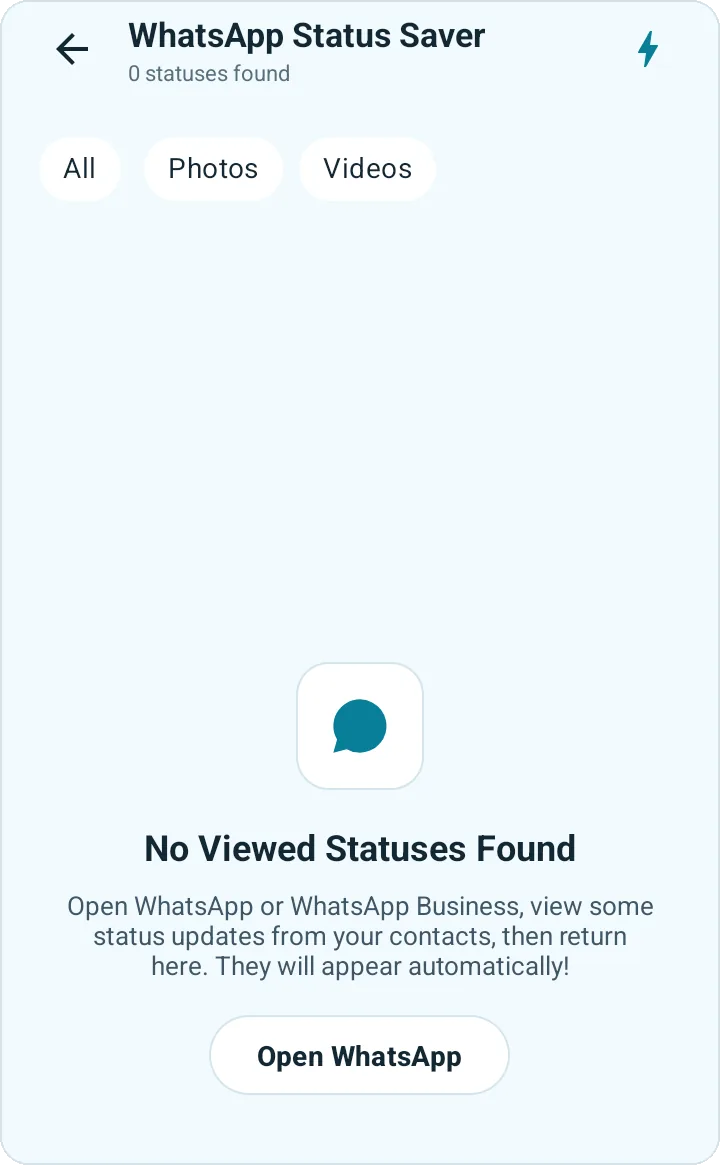
If you haven’t viewed any statuses yet, you’ll see this screen instead:
If the list stays empty
- Open the status in WhatsApp, let it play, then return to the app.
- Statuses expire. Anything older than about 24 hours will have been cleared by WhatsApp.
- Grant access again if you changed WhatsApp versions or cleared app data.
- Check WhatsApp’s media visibility. It doesn’t affect statuses, but make sure WhatsApp itself can download media on your current connection.
Please be considerate
Statuses are shared with a chosen group for a short time. Saving a status for yourself is one thing; forwarding a friend’s personal status to people they didn’t share it with is another. When in doubt, ask.
Related
Questions about this guide
Why does the status saver say 'No Viewed Statuses Found'?
You haven't opened any statuses recently, or they've expired. Open WhatsApp, view the status, then come back.
Does it work with WhatsApp Business?
Yes. The status saver reads statuses from both WhatsApp and WhatsApp Business.
Will my contact know I saved their status?
No extra notification is sent. They see that you viewed it, as usual. Please ask before sharing someone's status with others.
Need the app?
Free · v1.0.3.1 · 97.9 MB · Android 7.0 or newer · How to install