
App guide 4 of 5
How to Use the Save Downloads Cleaner to Free Up Space
Scan junk, find large files, clean WhatsApp media and spot duplicate photos with the Cleaner tab in Save Downloads. Real screenshots and what each tool does.
Quick steps
- Open the Cleaner tab. Tap Cleaner in the bottom bar to see storage used, RAM and battery.
- Scan for junk. Tap Scan junk. The app checks cache files, thumbnails, old APKs, temporary files and empty folders.
- Review the categories. Untick anything you want to keep. Each category shows its size.
- Clean. Tap the Clean button to remove the selected items.
The Cleaner tab in Save Downloads gathers a few storage tools in one place: a junk scan, a large-file finder, WhatsApp cleanup, duplicate photo detection and an app manager. Everything runs on your phone. Screenshots are from version 1.0.3.1 on our Redmi 14C test phone, which was genuinely almost full (99 percent) when we took them.
The Cleaner overview
Tap Cleaner in the bottom bar. The card at the top shows how much storage is used and free, along with RAM use and battery level.
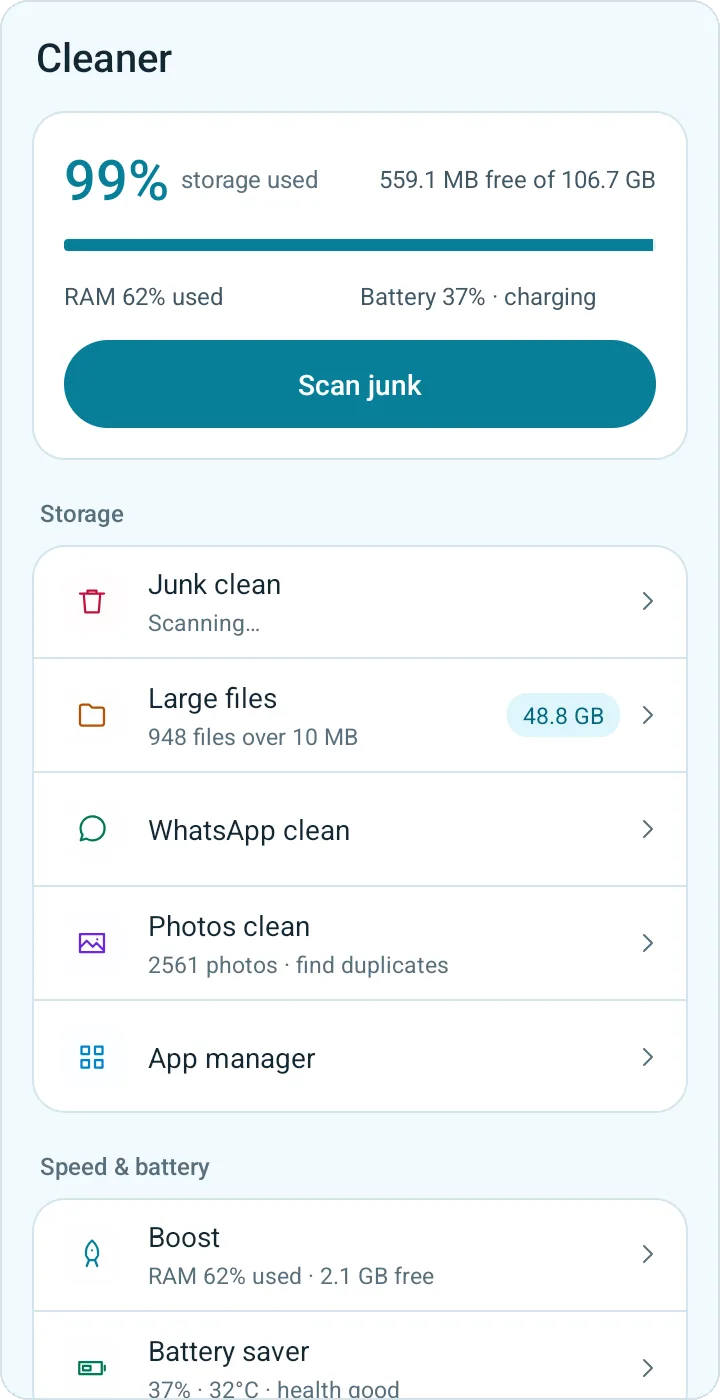
Below are the tools:
- Junk clean: cache files, thumbnails, old APKs, temp and log files, empty folders.
- Large files: every file over 10 MB, biggest first. On our phone it found 948 files totalling 48.8 GB, which is where the real space was.
- WhatsApp clean: received videos, images, documents and voice notes by type.
- Photos clean: looks for duplicate and similar photos.
- App manager: installed apps with their sizes, to spot ones you don’t use.
Step 1: Scan for junk
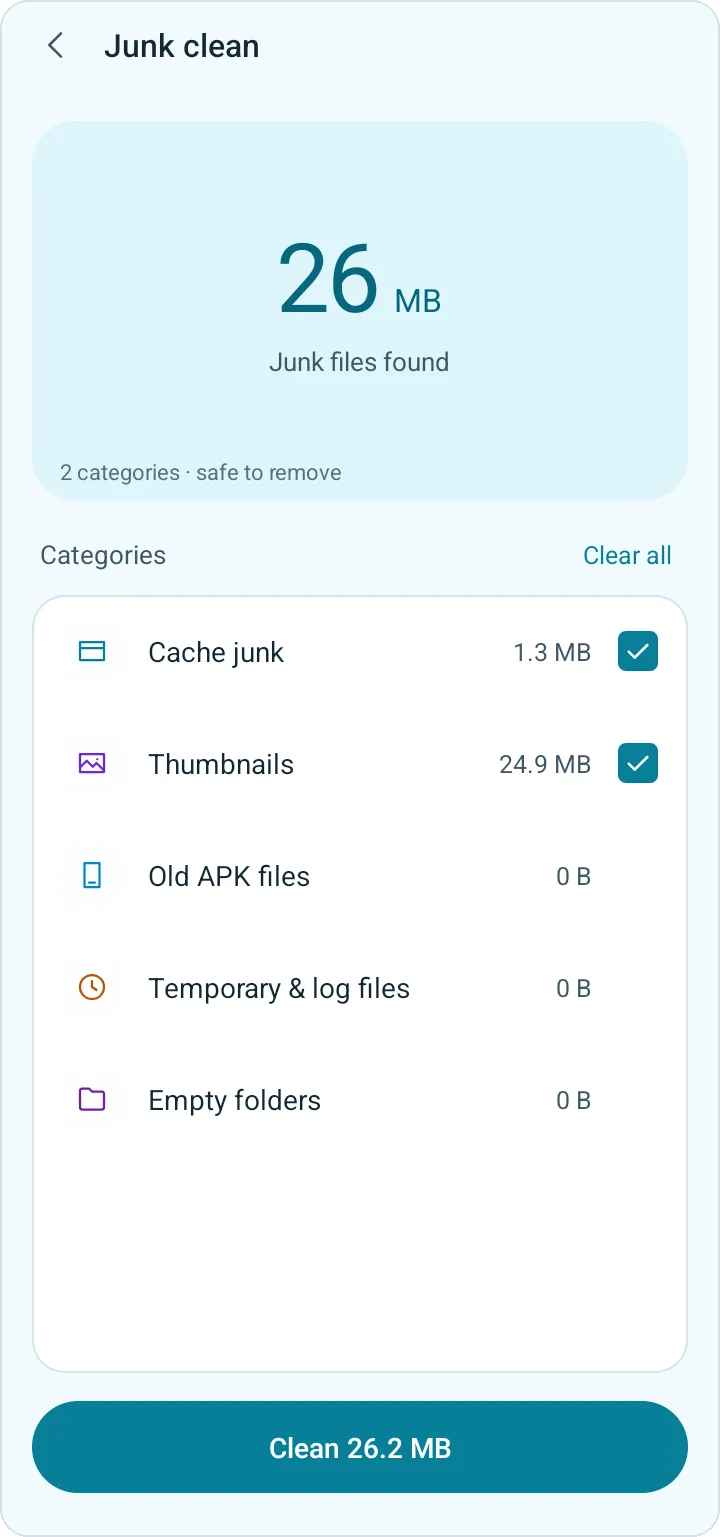
Tap Scan junk. After a few seconds you’ll see the total and a list of categories.
Step 2: Review before cleaning
Each category has a checkbox and a size. Only categories that are safe to remove are pre-selected. Untick anything you’d rather keep. In our scan, Cache junk (1.3 MB) and Thumbnails (24.9 MB) were found; Old APK files, Temporary & log files and Empty folders were empty.
If you see a note asking to allow file access to also find old APKs, temp files and empty folders, that’s optional. Granting it lets the scan look in more places.
Step 3: Clean
Tap Clean. The button shows exactly how much will be removed (here, 26.2 MB).
Set your expectations
Honest numbers: a junk scan usually frees tens or hundreds of megabytes, not gigabytes. The big wins on a full phone are usually in Large files and WhatsApp clean, where you decide what to delete. Our article on freeing up storage without deleting photos ranks the steps that recover the most space.
Related
Questions about this guide
Does the Cleaner upload my files anywhere?
No. Everything is checked on the phone and nothing is uploaded.
Is it safe to delete thumbnails?
Yes. Thumbnails are small preview images that galleries rebuild when needed. Your photos and videos aren't touched.
Why does the Cleaner ask for file access?
Without it, the scan only covers what Android allows by default. With file access it can also find old APK files, temporary files and empty folders. The permission is optional.
Need the app?
Free · v1.0.3.1 · 97.9 MB · Android 7.0 or newer · How to install