Phone care
Phone Storage Full? 9 Ways to Free Space Without Deleting Photos
Get gigabytes back on Android without losing a single photo: clear WhatsApp media, app cache, old downloads and APKs, and move backed-up photos off the phone.
By Save Downloads Team Published 8 min read How we write and test
The “storage almost full” warning always seems to arrive at the worst moment, usually when you’re about to film something. Deleting photos is the obvious fix and the one most people don’t want. The good news is that on most phones, several gigabytes are taken up by things you won’t miss.
We tested the steps below on our Redmi 14C test phone (106.7 GB usable), which was down to 559 MB free after months of app testing. Start at the top: the first few usually recover the most.
First, see what’s using the space
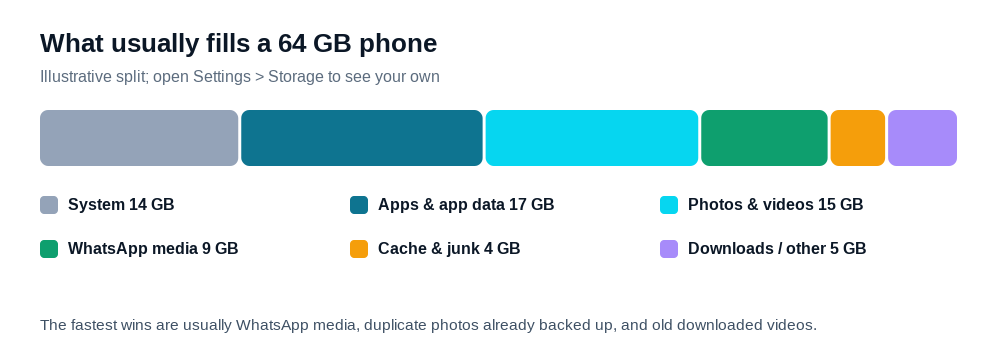
Open Settings > Storage (on Xiaomi: Settings > About phone > Storage; on Samsung: Settings > Battery and device care > Storage). You’ll see a breakdown by category. Note the biggest ones; there’s no point clearing cache if videos are taking 40 GB.
1. Clean WhatsApp media (often the biggest win)
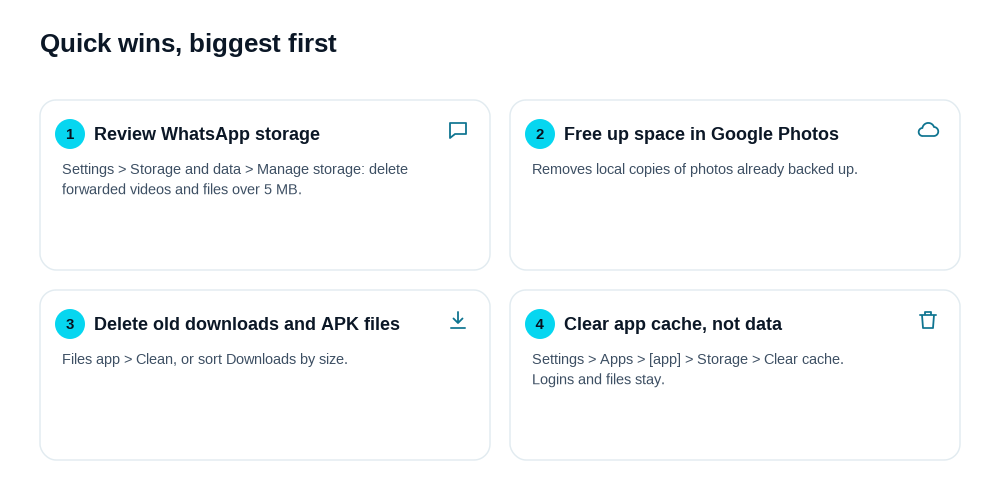
In busy groups, WhatsApp quietly saves every video, sticker and forwarded meme. Open WhatsApp > Settings > Storage and data > Manage storage. It shows:
- Forwarded many times: usually viral videos you’ve seen elsewhere.
- Larger than 5 MB: sorted by size, biggest first.
- Per chat: find the group that’s eating your storage.
Select and delete. Then stop it happening again: Settings > Storage and data > Media auto-download, and set videos to Wi-Fi or No media. For busy groups, open the group info and turn off Media visibility so files don’t land in your gallery.
2. Free up space in Google Photos
If Google Photos backup is on, your phone keeps a copy of photos that are already safe in the cloud. Open Google Photos, tap your profile picture and choose Free up space. It removes only the local copies of backed-up items. Your photos stay in your account and in the app.
Check first that backup is complete (profile picture > the backup status should say done), and remember that cloud storage has its own limit.
3. Delete old downloads and APK files
The Downloads folder is a junk drawer: PDFs read once, installer files, duplicate videos. In Files by Google, the Clean tab suggests old downloads and duplicate files. Or open Downloads and sort by size.
APK files are worth singling out. Once an app is installed, its installer file is useless, and APKs are often 50 to 150 MB each.
4. Clear app cache, not app data
Apps keep temporary files (cache) to load faster: thumbnails, previews, web content. Browsers, social apps and streaming apps can build up gigabytes.
Settings > Apps > [app] > Storage > Clear cache. Your logins, settings and saved files stay. Don’t tap Clear data or Clear storage unless you want to reset the app completely.
Apps with big caches: Chrome, Instagram, Facebook, TikTok, Telegram, Spotify and YouTube Music (downloaded songs count as data, not cache).
5. Remove apps you don’t use
Settings > Apps, then sort by size or by last used. Games are often 1 to 4 GB each. Many phones also offer to archive unused apps (Settings > Apps > Archive apps on recent Android), which removes the app but keeps your data so it comes back as you left it.
6. Move or downsize downloaded videos
Videos are the heaviest files on most phones. A few ideas:
- Delete what you’ve already watched. It’s easy to download a series “for later” and forget it.
- Keep music as audio. A 4-minute song is about 4 MB as an MP3 but 40 MB or more as a video.
- Choose 720p for phone viewing. It’s roughly half the size of 1080p and looks almost the same on a phone screen. Our article on video size per minute has the numbers.
7. Clear offline maps, music and podcasts
Google Maps offline areas, downloaded Spotify playlists, Netflix downloads and podcast episodes all count against your storage and are easy to forget. Check each app’s downloads or offline section.
8. Empty the trash folders
Deleting a photo often just moves it to a trash or recently-deleted folder for 30 days (Google Photos, Samsung Gallery, Xiaomi Gallery and Files by Google all do this). If you need the space now, empty those bins. Make sure there’s nothing in there you meant to keep first.
9. Use a cleaner, carefully
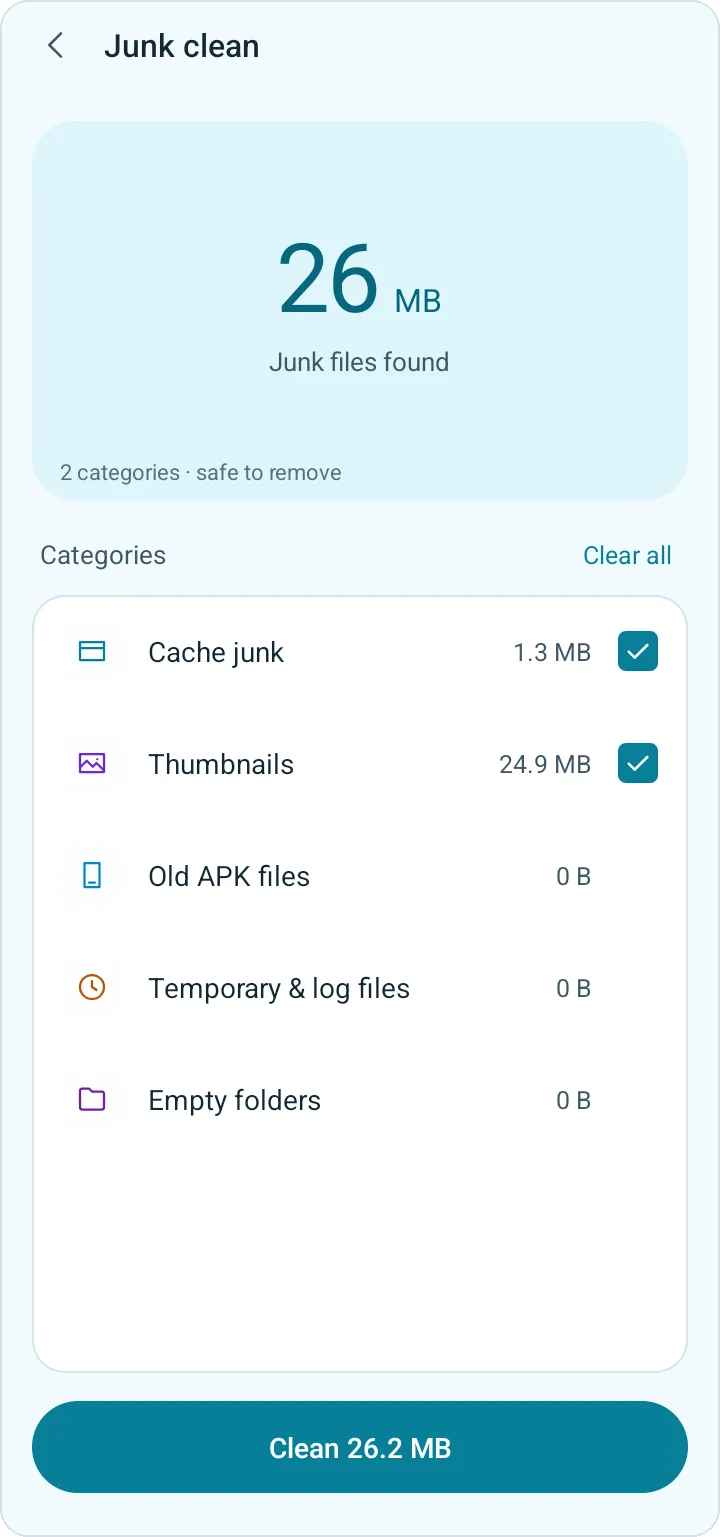
A cleaner app can find leftovers in one pass: empty folders, old APKs, temp and log files, thumbnail caches. The good ones show you exactly what will be deleted and let you untick things.
The Cleaner tab in Save Downloads does this locally. Nothing is uploaded. On our test phone, a junk scan found 26 MB (mostly thumbnail cache) and listed it by category before cleaning. That’s typical: cleaners recover tens or hundreds of megabytes, not gigabytes, which is why steps 1 to 4 come first.
Be wary of cleaners that promise to “boost RAM” or show alarming warnings. Android manages memory itself, and force-closing apps usually makes the phone slower because they have to reload.
Keep at least 10 percent free
Android slows down when storage is nearly full: app updates fail, the camera may refuse to record, and the system can’t write temporary files. Aim to keep about 10 percent of your storage free. On a 64 GB phone that’s around 6 GB.
Summary
Before deleting photos, clear WhatsApp media, use Google Photos’ Free up space for backed-up items, delete old downloads and APKs, and clear app caches. Remove unused apps, keep music as MP3 instead of video, and empty trash folders. A cleaner app helps with leftovers but recovers less than these manual steps.
Sources and further reading
Frequently asked questions
Is it safe to clear cache on Android?
Yes. Cache is temporary data apps can rebuild. Clearing it doesn't log you out or delete your files. Clearing 'data' or 'storage' is different: that resets the app.
What takes up the most space on Android?
Usually videos, then WhatsApp media, then app data. Settings > Storage shows the breakdown for your phone.
Does Google Photos 'Free up space' delete my photos?
It removes only the copies on your phone that are already safely backed up. They stay in Google Photos and you can view or download them any time.
Why is 'Other' or 'System' storage so big?
System is Android itself and can't be reduced. 'Other' often includes app caches, downloaded files in unusual folders and leftover data from uninstalled apps. A cleaner app or the Files app can find most of it.
Save videos, photos and audio on Android
Save Downloads is free, needs no account, and shows the real file size before every download.
Free · v1.0.3.1 · 97.9 MB · Android 7.0 or newer · How to install